Showing posts with label Linux. Show all posts

Thursday, 22 December 2016

10 of the Most Popular Linux Distributions Compared


Arch Linux


Arch Linux


Arch Linux is a rolling release distribution that has been around for all 14 years of the Distrowatch rankings.
A rolling release distribution for the power user, Arch has grown in presence and boasts one of the largest software repositories.
Stand out features include the AUR and incredible documentation.
Championed by a large community this distribution provides everything the experienced Linux user could ever need.
It took until 2010 for Arch to hit the top 10 and its highest position was in 2011 when it reached 6th position. This can be largely put down to the complexity of the distribution.

2
CentOS


CentOS


CentOS is a community version of Red Hat Linux which provides all of the stability and power of the its parent.
It has been around for quite a while but only hit the top 10 distributions in 2011.
It is a good solid distribution without frills and perfect for home and business use.

3
Damn Small Linux


Damn Small Linux


Damn Small Linux (DSL) has been around since about 2003/2004 and its main selling point is that it has an incredibly small footprint.
The download size of DSL is just 50 megabytes and for a few years it was in the top 10 distributions but it slipped out of the list in 2009 and has been falling ever since. It's highest position was 6 into 2006.
The main issue with such a small image is that it requires a lot of setting up to get it to do anything. A novel idea but not much real world substance.

4
Debian


Debian


Debian is the only distribution to have been in the top 10 since 2002.
Its highest position is 2 and that is its current ranking.
Debian is a founding father of Linux and it provides the base for many of the other distributions available today including Ubuntu and Linux Mint.
Used by professionals and large businesses makes it a key distribution for people thinking of getting in to Linux as a career choice.
It is relatively easy to install and is highly customisable and it is easy to use.

5
Dream Linux


Dream Linux


Dream Linux was around up until 2012. It is hard to find information about it.
The screenshot was taken from LinuxScreenshots.org.
Dream Linux hit the top 10 rankings in 2008 and it must have been the 3.5 releasethat was responsible for its rise.
Based on Debian Lenny, Dream Linux came with the XFCE desktop environment with an option to install the GNOME desktop.
The best tribute that can be given to this Brazlian distribution is from Unixmen who described Dream Linux as fast and beautiful.

6
Elementary OS


Elementary OS
.

Elementary is a relative new comer to the block. It first reached the Distrowatch rankings in 2014 and currently sits at number 7 which is its highest position to date.
The key to Elementary is the visually pleasing and highly aesthetic desktop.
The concept is simple, keep it simple.  

7
Fedora


Fedora Linux


Fedora is an offshoot of Red Hat. It is every Linux enthusiasts dream distribution because it is completely cutting edge, bringing all of the new concepts to the table first.
As with Debian it is a good idea to use either Fedora or CentOS as they provide the perfect platform for anyone wanting to get a career in Linux.
Fedora was one of the first distributions to introduce both Wayland and SystemD.
It is relatively easy to install and the GNOME desktop is easy to use. However it isn't always the most stable.
Fedora first entered the Distrowatch top 10 in 2004 and hasn't been below 5th ever since peaking at position 2 in 2010.

8
Gentoo


Gentoo Linux
 Gentoo Linux.

In 2002 Gentoo was the 3rd most popular Linux distribution. Of course that was a time before graphical installers.
Gentoo isn't for the faint hearted and is used by a core community of people who live to compile code themselves.
It dropped out of the top 10 in 2007 and currently sits in position 34. 
Technically speaking based on hits per day it is only slightly less popular then is was back in 2002 but the popularity that Linux has gained means easier to use distributions will always jump ahead.
A niche distribution for the full on Linux geek. 

9
Knoppix


Knoppix


Knoppix is a Linux distribution designed to be run from a DVD or USB drive.
It has been around a very long time and first hit the top 10 in 2003, peaking at its highest position of 3rd before dropping off the list in 2006.
It is still going and is currently on version 7.6 and it resides in position 55. 

10
Lindows


Lindows


The one thing that has been consistent in the past 14 years is the obsession with making Linux distributions that look like Windows.
One of the very first was called Lindows but the name had to be changed because it was too close to a certain other company's trademark.
Lindows only appearance in the top 10 was in 2002 at position 9 although it went on to become Linspire. 

Sunday, 18 December 2016

Five tips for improving Linux security

1: Take advantage of the keyring

To many, this is an annoyance. You log in to your machine, your machine requests a connection to a network (or LDAP server, etc.), and you have to enter your keyring password. The temptation is to disable this feature by giving it an empty password and dismissing the warning that you’ll be transmitting unencrypted information (including passwords). This is not a good idea. Although you might think it a hassle, this feature/functionality is there for a reason — to encrypt sensitive passwords when they are sent over the wire.

2: Enforce user password update

If you run a multi-user environment (as Linux is wont to do), you should make sure that your users change their passwords every so often. To do this you use the chage command. You can check the expiration with the command sudo chage -l USERNAME (where USERNAME is the name of the user you want to check). Let’s say you want to expire a user’s password and make him change it upon next login. To do this, you could issue the command sudo chage -E EXPLICIT_EXPIRATION_DATE -m MINIMUM_AGE -M MAXIMUM_AGE -I INACTIVITY_PERIOD -W DAYS_BEFORE_EXPIRATION (where all options in CAPS are user defined). For more information on this command, see the man page (issue the command man chage).

3: Don’t blindly disable SELinux

Similar to the keyring, SELinux is there for a reason. SE stands for Security Enhanced and it provides the mechanism that controls access to applications. I have read of a number of “solutions” to problems that involved disabling SELinux. If this is seen as a solution, it will only lead to more, uglier problems. If a particular program isn’t running properly, look into modifying an SELinux policy to fit your needs rather than disabling SELinux. If you don’t want to do this via the command line, you might want to check out a GUI tool called polgengui.

4: Don’t log in as root

It may sound as if I’m a broken record with this one, with good reason. I can’t stress enough that Linux users should NOT be logging in as the root user. If you need to do administration on a machine, log in as your regular user and either su to the root user or take advantage of sudo. When you log in as the root user, you effectively bypass a major security hurdle and allow access to systems and subsystems that normally wouldn’t be accessible when logged in as a standard user. Do not do this. Log in with your regular account. Period.

5: Install security updates quickly

There is a HUGE difference between the way Linux and Windows handle updates. Where Windows typically does an infrequent massive update, Linux does frequent smaller updates. Ignoring these updates can be disastrous if the right security hole is not patched on your system. You have to remember, some of those updates are in fact security patches and need to be applied immediately. Never ignore that icon indicating updates are available. And if you are using a GUI-less server, make sure you set up a cron job to check for updates or check them manually either daily or weekly. Stay up to date and you stay more secure.
source:- http://www.zdnet.com/

Wednesday, 14 December 2016

How Do I Update Ubuntu Linux Softwares Using Command Line?


 I have latest version of Ubuntu Linux LTS server. How do I update Ubuntu Linux for security and application fix/upgrades using ssh command line? How can I install updates via command line option?

Ubuntu Linux can be upgraded using GUI tools or using traditional command line tools such as:

  1. apt-get command – apt-get is the command-line tool for handling packages.
  2. aptitude command – aptitude is a text-based interface to the Debian GNU/Linux package system including Ubuntu Linux.

Ubuntu Linux server – Install updates via apt-get command line (option #1)

The commands are as follows:
=> apt-get update : Update is used to resynchronize the package index files from their sources via Internet.
=> apt-get upgrade : Upgrade is used to install the newest versions of all packages currently installed on the system
=> apt-get install package-name : Install is followed by one or more packages desired for installation. If package is already installed it will try to update to latest version.
First, open the Terminal application and type following two commands (Application > Accessories > Terminal).

Get update software list, enter:

Type the following apt-get command:
$ sudo apt-get update

Update software(s) i.e. apply updates and patches on Ubuntu Linux

Type the following apt-get command:
$ sudo apt-get upgrade
Please note that above two commands will fetch files from the Internets or local mirrors. The location of update pages is specified in /etc/apt/sources.list (repositories). You need NOT to make any changes to this file until and unless you need extra repositories for your setup.

Install kernel updates on a Ubuntu LTS server

Type the following apt-get command:
$ sudo apt-get dist-upgrade
If a new kernel installed, reboot the server:
$ sudo reboot

To upgrade individual software called foo type command:

$ sudo apt-get install foo
OR
$ sudo apt-get install apache php5 mysql-server

Ubuntu Linux server – Install updates via aptitude command line (option #2)

The syntax is as follows to Update the packages list:
$ sudo aptitude update
To actually upgrade the packages, type:
$ sudo aptitude safe-upgrade

Apply Ubuntu server updates over ssh based command line session

First, login to the remote Ubuntu server using ssh client:
$ ssh user@server-name-here
$ ssh vivek@server1.cyberciti.biz

Once your log into your server, run the following two commands:
$ sudo apt-get update
$ sudo apt-get upgrade

OR
$ sudo aptitude update
$ sudo aptitude safe-upgrade

OR
$ sudo apt-get update
$ sudo apt-get dist-upgrade

From the apt-get(8) page:
The dist-upgrade in addition to performing the function of upgrade, also intelligently handles changing dependencies with new versions of packages; apt-get has a “smart” conflict resolution system, and it will attempt to upgrade the most important packages at the expense of less important ones if necessary. So, dist-upgrade command may remove some packages. The /etc/apt/sources.list file contains a list of locations from which to retrieve desired package files.

Using Ubuntu Update Manager GUI tool

Ubuntu Update Manage the GUI tool. It works like Microsoft or Red Hat update manager i.e. you will see a little icon in the kicker bar/taskbar when there are updates. It will only appear when new upgrades are available. All you have to do is click on it and follow the online instructions. You can also start the GUI tool by Clicking System > Administration > Update Manager

A note about the latest version of Ubuntu Linux

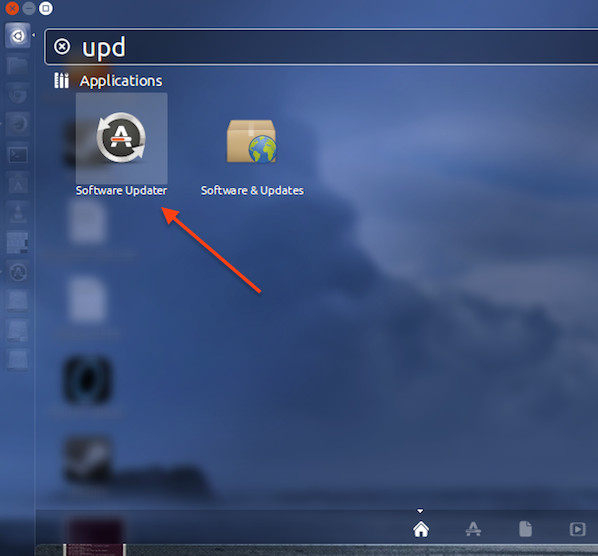
Press the Superkey (Windows key) > Type updater:
Fig.01: Ubuntu Launch the Software Updater

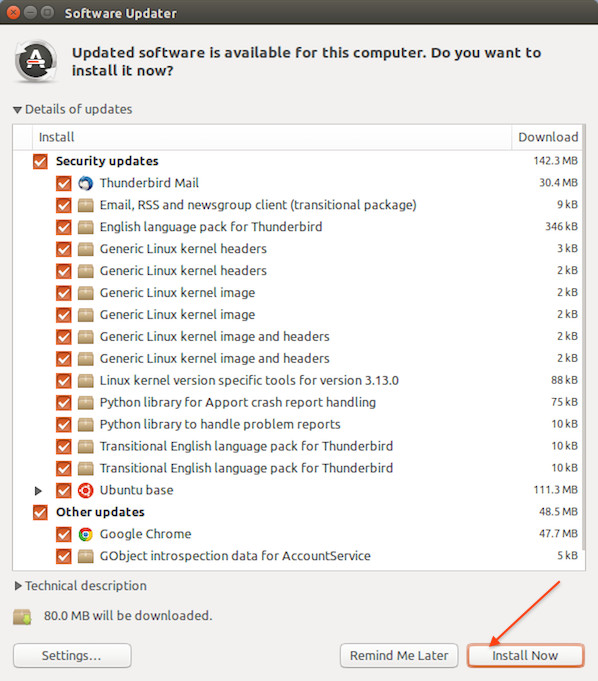
You will see the box as follows. Click on the Install now button
Fig.02: Installing updates on a Ubuntu Linux

Wednesday, 7 December 2016

Deepin Linux: A Polished Distro That's Easy to Install and Use

I usually don't dig into new distros, unless they have something new to offer. The reason is because there are so many distros that are released everyday that it's challenging, and to some extent, pointless to track them all.
I was not very excited when I decided to download Deepin as I assumed it to be yet another distro. I was wrong. It turned out to be an extremely polished, robust and easy-to-use distribution targeted at traditional Windows or Mac users. So what makes this OS so special? Almost everything.

One of the most pleasant installers

I have used almost all major GNU/Linux based distributions and Arch Linux is my default OS. That also means I have been through the installation of all these distributions. Based on that experience I can say that Deepin seems to have the simplest installation procedure. Not only is it simpler for a new user, it's also quite pleasant.
You need to download the multi language iso image of Deepin otherwise you may be stuck with Chinese. Inside the installer, the first screen shows language options and since it's a Chinese distribution, don't forget to choose English.
deepin language choice menu
The next window asks you to create a username and password for the system user.
deepin create username
The third screen will let you partition the drive, where you can create root and swap (if needed) partitions. I don't bother with "home" partition anymore and just give more space to the root partition. You should mount your other partitions or hard drives during installation itself to avoid the frustration of creating fstab entries for those partitions after installation.
deepin partition setup
Once you click on "install" Deepin gives you a demo of the system while it copies files to your drive and configures the OS. Once the installation is finished, unlike Fedora, it tells you to reboot your system so you can start using your brand new Deepin desktop. I have not come across a simpler installer on Linux for quite some time; it was refreshing. I think Deepin has done an incredible job at making the installation process as easy as it is to install Mac OSX or Windows.

Welcome to the demo shop

Once you reboot into your new system, Deepin will give you an animated demo of the system features and options. This is similar to what you see when you boot into your new Android; Google gives you a walkthrough of the system. That's really neat because Deepin's UI (user interface) is different from traditional PCs and a user does need a bit of help. Once again Deepin has done an incredible job at helping out new users.

Skin deep beauty

Deepin clearly has a very clean and clutter-free interface. All you see is a clean desktop, a folder on the top left and launcher at the bottom. The choice of icons is also refreshing and modern compared to the ancient looking default icons of Ubuntu and Gnome.
The desktop has four hot corners, which means if you take your mouse to these corners you will be able to access certain features. The top left corner opens the applications launcher, the bottom left brings you back to the desktop and the bottom right opens the control center.
You can change/configure each corner. Just right-click on the desktop and choose 'corner navigation' from the context menu. This will show each active corner with a gear and you can choose the desired action for that corner.
deepin corners demo

Houston, we are in control

Deepin has adopted a different approach to the desktop. All system settings appear as a right panel, instead of a window as seen in other OSes. The control panel allows you to manage users, monitors, default applications, among many other things. The personalization option allows one to change themes, windows, icons, cursors, wallpapers, fonts etc.
deepin personalization
There is also a clever option to manage the boot menu. You can easily customize the background image for the boot menu. Choosing the default OS, if you have more than one installed, is also extremely easy from the Control Center. It's reminiscent of the good old Linux days, of the 3D cube, where you could change almost every aspect of your computer, contrary to the dumbed down approach adopted by many contemporary distributions.

Everything that glitters is not Gnome

Even if it looks like Gnome Shell, Deepin is not using the shell. They started off with the Shell, but encountered many problems as they tried to customize it to their needs (that could be one of the many reasons there are so many forks or alternatives to Gnome Shell: Cinnamon, Mate, Elementary OS' Pantheon, and Unity, among many others).
Similar to other projects Deepin went ahead and developed their own Shell which was simply called Deepin Desktop Environment. DDE is based on HTML5 and WebKit and uses a mix of QML and Go Language for different components. Core components of DDE include the desktop itself, the brand new launcher, bottom Dock, and the control center.
deepin dock

What's in the box

Deepin comes with a decent set of applications pre-installed so you can get to work immediately. It comes with Chrome, Files (nautilus), LibreOffice suite, Deepin Music and Movie player, Deepin USB Creator, PDF viewer, and Gparted, among many others.
deepin applications
It also comes pre-installed with Adobe Flash Player, which you may not need if you are using Chrome, as Google has implemented Pepper plugin API for Flash support on Chrome. Most of the default apps are developed by the team and branded 'Deepin'.
Since it's based on Ubuntu, you can install every single app that's available for Ubuntu using apt-get, launchpad or by simply downloading the .deb binaries. Deepin comes with an App Store similar to the Ubuntu Software Center which makes it easier to install and remove applications, for those who don't want to deal with the terminal.
Need to use that legacy Windows app? No worries, it comes with CrossOver which enables installation of supported Windows programs. That alone makes life much easier for a Windows user planning to migrate to Linux.

Setting up printers and non-free drivers

Deepin comes with Jockey which assists a user in detecting any proprietary hardware, such as Nvidia GPUs, and then offers non-free and free drivers to be easily installed by a user. Installing and configuring a printer or scanner is also extremely easy, like it is on any other Ubuntu-based distributions. Just open "printers" from the Launcher and follow the instructions.

Conclusion

I am a loyal Arch Linux/openSUSE user, however I am also a distro hopper (even if I have been using Linux for over a decade now). I keep hunting for new distros just for the sake of freshness and often install them on my second machine after playing with them on VirtualBox. I must admit that Deepin is really getting me excited and if I have to migrate any user from Windows or Mac to Linux I will certainly give Deepin a try. The reasons are simple: It's easy to install and use, it looks modern and very well polished.
One criticism is that there are some inconsistencies in apps. While Deepin's own apps don't have any menu bar, Gnome apps such as Evince have menu bars, which makes it look like patchwork. I assume future updates might blur these differences and all, at least pre-installed, apps will look consistent across the OS.
Other than that I am also not certain about the upgrade path as I have not tried it (upgrading) yet. Since Deepin has diverged way too much from Ubuntu, just like Linux Mint, I can't really comment on how smooth will the upgrade be. There is no one-click or one-command path. Deepin provides a package to help users in upgrading to the new release and it does take some extra work. So yes, it's not as easy as running distro-upgrade.
That said, Deepin has all the bells and whistles on top of the simplicity and ease of use. If you have not tried Deepin yet, you certainly should. And if you have tried Deepin let us know what you think about it in the comments below.
Readmore: www.linux.com